> ## Documentation Index
> Fetch the complete documentation index at: https://docs.bkstr.io/llms.txt
> Use this file to discover all available pages before exploring further.
# Services
> Configure the services your visitors can book through the chat widget
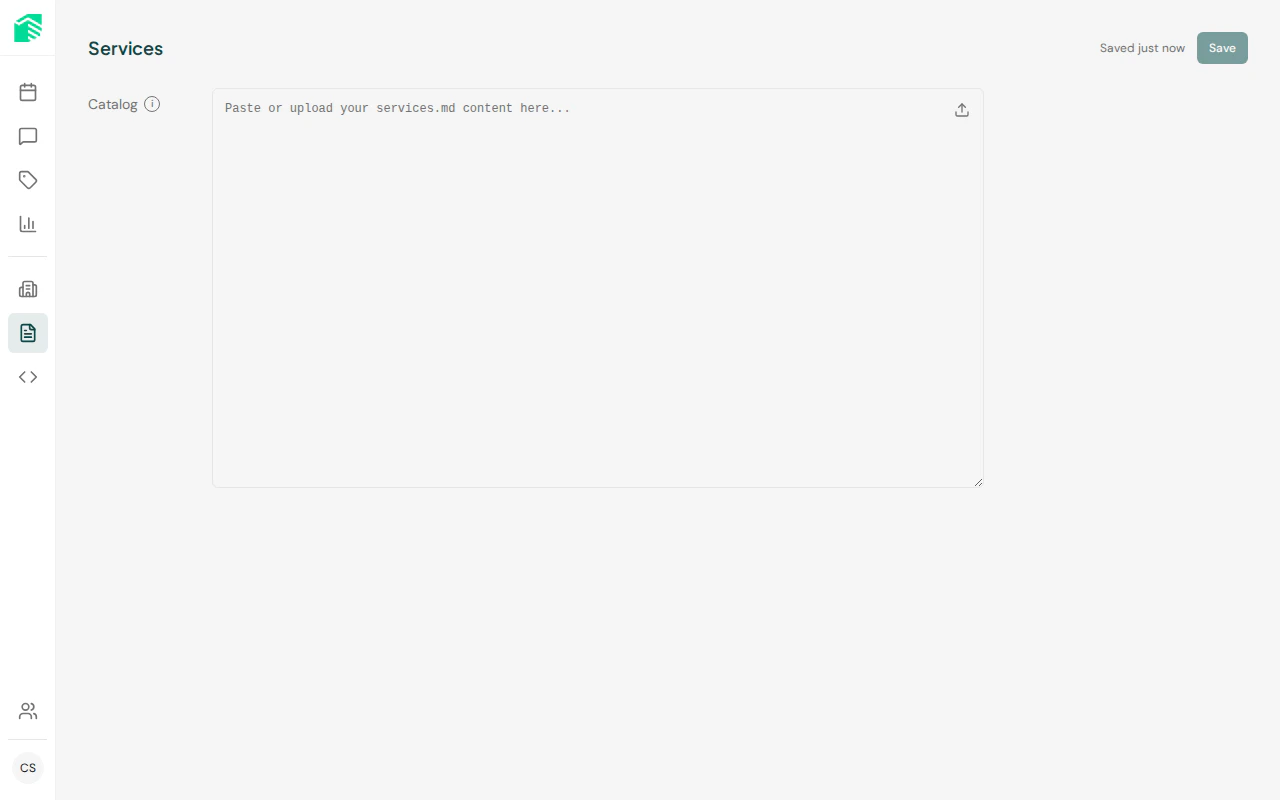
Services are what your visitors can book through the Bookster chat widget. You organize them into categories (e.g., "Haircuts", "Massages") and define details like duration, price, and description.
 ## Service categories
Categories group related services together. The booking assistant uses categories to help visitors browse and find what they're looking for.
To create a category:
1. Go to **Services** in the admin dashboard
2. Click **Add category**
3. Enter a name and optional description
4. Click **Save**
## Adding a service
1. Select a category (or create one first)
2. Click **Add service**
3. Fill in the service details:
| Field | Description |
| --------------- | ----------------------------------------------------------------------- |
| **Name** | The service name shown to visitors |
| **Description** | What the service includes — the assistant uses this to answer questions |
| **Duration** | How long the service takes (used for scheduling) |
| **Price** | The listed price shown to visitors |
4. Click **Save**
Write detailed descriptions — the booking assistant uses them to answer visitor questions about what's included, what to expect, and who the service is for.
## Editing and deleting
* Click on any service to edit its details
* Use the delete button to remove a service
* Deleting a category will also remove all services in that category
## Service categories
Categories group related services together. The booking assistant uses categories to help visitors browse and find what they're looking for.
To create a category:
1. Go to **Services** in the admin dashboard
2. Click **Add category**
3. Enter a name and optional description
4. Click **Save**
## Adding a service
1. Select a category (or create one first)
2. Click **Add service**
3. Fill in the service details:
| Field | Description |
| --------------- | ----------------------------------------------------------------------- |
| **Name** | The service name shown to visitors |
| **Description** | What the service includes — the assistant uses this to answer questions |
| **Duration** | How long the service takes (used for scheduling) |
| **Price** | The listed price shown to visitors |
4. Click **Save**
Write detailed descriptions — the booking assistant uses them to answer visitor questions about what's included, what to expect, and who the service is for.
## Editing and deleting
* Click on any service to edit its details
* Use the delete button to remove a service
* Deleting a category will also remove all services in that category