> ## Documentation Index
> Fetch the complete documentation index at: https://docs.bkstr.io/llms.txt
> Use this file to discover all available pages before exploring further.
# Customization
> Change the appearance and behavior of your Bookster chat widget
## Widget settings
Configure these settings in **Settings** → **Widget** in your admin dashboard.
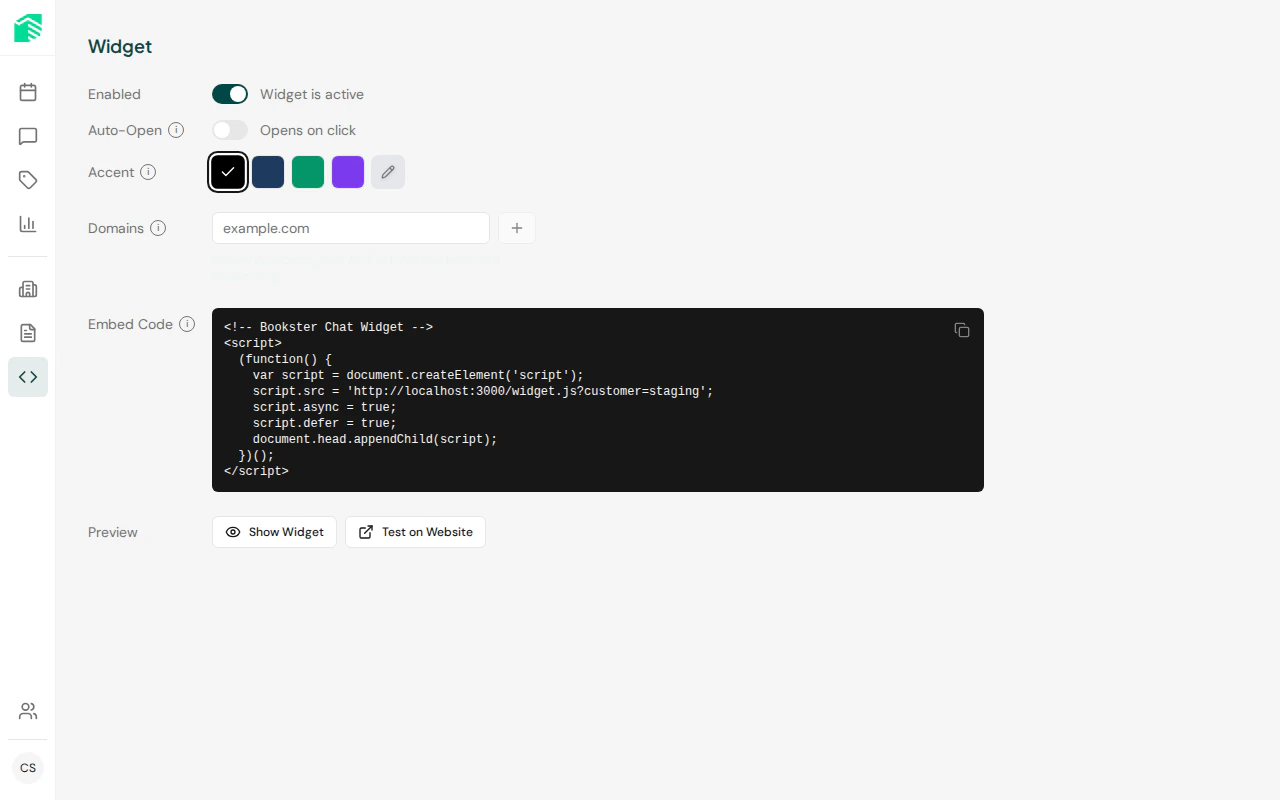 | Setting | Description | Default |
| ------------------ | ----------------------------------------------------------- | --------- |
| **Widget enabled** | Master toggle — disables the widget on all domains when off | On |
| **Auto-open** | Automatically open the chat when a visitor loads the page | Off |
| **Accent color** | Hex color for the chat button, header, and send button | `#000000` |
## Accent color
The accent color is applied to:
* The chat launcher button
* The chat header accent
* The send message button
* The initial greeting badge
Text color automatically adjusts for contrast (white on dark backgrounds, black on light).
Set any valid hex color code (e.g., `#FF6B35`, `#004643`).
## Widget layout
The widget renders as a floating element in the bottom-right corner of the page.
| Setting | Description | Default |
| ------------------ | ----------------------------------------------------------- | --------- |
| **Widget enabled** | Master toggle — disables the widget on all domains when off | On |
| **Auto-open** | Automatically open the chat when a visitor loads the page | Off |
| **Accent color** | Hex color for the chat button, header, and send button | `#000000` |
## Accent color
The accent color is applied to:
* The chat launcher button
* The chat header accent
* The send message button
* The initial greeting badge
Text color automatically adjusts for contrast (white on dark backgrounds, black on light).
Set any valid hex color code (e.g., `#FF6B35`, `#004643`).
## Widget layout
The widget renders as a floating element in the bottom-right corner of the page.
 | View | Size |
| --------------------------- | ---------------- |
| **Closed** (button only) | 80 × 80px circle |
| **Open** (desktop) | 420 × 680px |
| **Open** (mobile, \< 768px) | Full screen |
| **Expanded** | Full screen |
Visitors can toggle between the regular and expanded views using the maximize button in the chat header.
## Auto-open
When enabled, the chat window opens automatically when a visitor first loads the page. This is useful for pages where you want to proactively engage visitors (e.g., a pricing or booking page).
You can also trigger auto-open for specific pages using the [URL parameter](/widget/embed-script#url-parameters):
```
https://yoursite.com/pricing?chat=open
```
| View | Size |
| --------------------------- | ---------------- |
| **Closed** (button only) | 80 × 80px circle |
| **Open** (desktop) | 420 × 680px |
| **Open** (mobile, \< 768px) | Full screen |
| **Expanded** | Full screen |
Visitors can toggle between the regular and expanded views using the maximize button in the chat header.
## Auto-open
When enabled, the chat window opens automatically when a visitor first loads the page. This is useful for pages where you want to proactively engage visitors (e.g., a pricing or booking page).
You can also trigger auto-open for specific pages using the [URL parameter](/widget/embed-script#url-parameters):
```
https://yoursite.com/pricing?chat=open
```